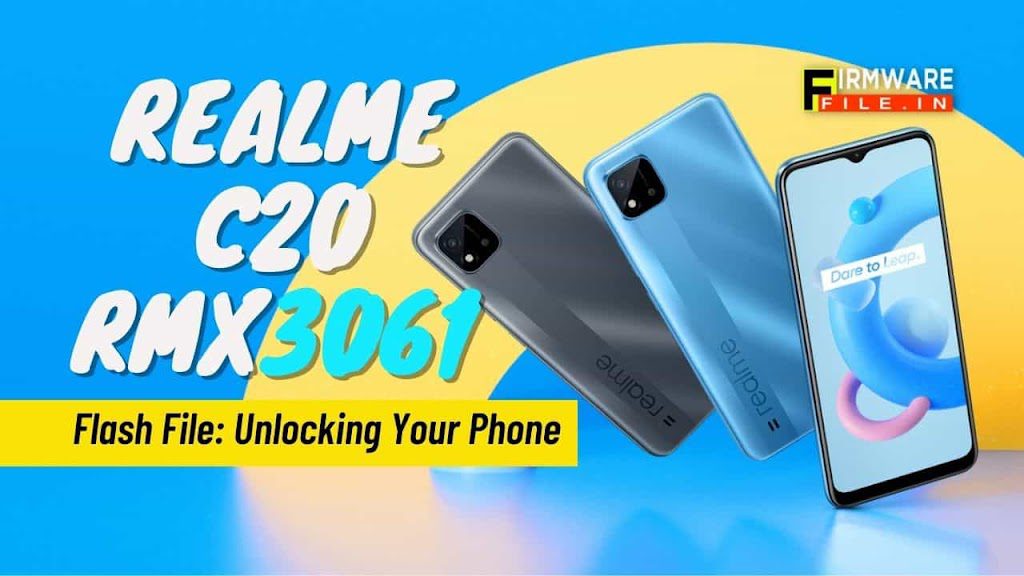
If you’re searching for the Realme C20 Flash File, you’re likely facing software issues such as boot loops, firmware corruption, or an unresponsive device.
Flashing the correct firmware can resolve these problems and restore your phone’s functionality.
This comprehensive guide covers everything you need to know about the Realme C20 Flash File, including its benefits, installation methods, precautions, and FAQs.
By the end of this article, you’ll understand how to safely flash your Realme C20 without risking further damage. Let’s begin!
Contents
Basic Information About Realme C20 Flash File
Before proceeding with the flashing process, it’s essential to understand some key points:
What is Realme C20 Flash File?
A flash file (or firmware) is the operating system of your device. It contains all the necessary system files required for your phone to function correctly.
Why Do You Need It?
- Fixes software crashes or boot loops
- Removes malware or corrupted system files
- Unbricks a dead or unresponsive device
- Downgrades or upgrades the Android version
Precautions Before Flashing
- Backup all important data (flashing erases everything).
- Ensure your Realme C20 has at least 50% battery.
- Use the correct flash file for your model (RMX3061 for Realme C20).
- Download firmware only from trusted sources.
How to Download Realme C20 Flash File
Since Realme officially releases firmware updates via OTA (Over-The-Air), you can download the stock ROM from Realme’s official website or trusted third-party sources. Here’s how:
Method 1: Official Realme Support
- Visit Realme’s official support page.
- Search for Realme C20 (RMX3061).
- Download the latest firmware version.
Method 2: Using Third-Party Websites
If the official firmware isn’t available, you can use trusted sites like:
- Firmware-File.IN
- GSMFlashFirmware.com
- NeedROM.com
Always verify the file’s authenticity before flashing to avoid malware risks.
| Realme C20 RMX3061 DUMP FILE | Realme RMX3061 Pattern Pin Frp Unlock File |
| RMX3061 realme C20 Preloader File |
| Firmware Version | Date | Google Drive Link |
|---|---|---|
| RMX3061PU_11_A.67_221215 | 2022-12-15 | Not Available |
| RMX3061PU_11_A.65_221020 | 2022-10-20 | Not Available |
| RMX3061PU_11_A.61_220311 | 2022-03-11 | Available |
| RMX3061PU_11_A.59_220107 | 2022-01-07 | Available |
| RMX3061PU_11_A.57_211218 | 2021-12-18 | Available |
| RMX3061PU_11_A.56_211203 | 2021-12-03 | Available |
| RMX3061PU_11_A.51_210929 | 2021-09-29 | Available |
| RMX3061PU_11_A.39_210622 | 2021-06-22 | Available |
| RMX3061PU_11_A.37_210526 | 2021-05-26 | Not Available |
| RMX3061PU_11_A.29_210419 | 2021-04-19 | Not Available |
| RMX3061PU_11_A.27_210401 | 2021-04-01 | Not Available |
| RMX3061PU_11_A.25_210304 | 2021-03-04 | Not Available |
| RMX3061PU_11_A.23_210210 | 2021-02-10 | Not Available |
| RMX3061PU_11_A.17_210104 | 2021-01-04 | Not Available |
Install Realme C20 Flash File
Flashing requires a Windows PC and the right tools. Follow these steps carefully:
Method 1: Using SP Flash Tool (For Dead Devices)
Requirements:
- SP Flash Tool (Download the latest version)
- Realme C20 Stock ROM (Extracted)
- USB Drivers (Installed on PC)
- USB Cable
Steps:
- Extract the firmware file (usually in .zip format).
- Open SP Flash Tool and load the scatter file (found in the extracted folder).
- Select “Download Only” mode.
- Power off your Realme C20 and connect it to the PC via USB.
- Click “Download” in SP Flash Tool to start flashing.
- Wait for completion (a green tick appears when done).
- Disconnect and reboot your device.
Method 2: Using Realme’s Official Recovery Mode
If your phone boots but has software issues, try this:
- Download the official OTA file from Realme’s website.
- Transfer it to your phone’s internal storage.
- Boot into Recovery Mode:
- Power off the phone.
- Press Power + Volume Down until the Realme logo appears.
- Select “Install from Storage” and choose the firmware file.
- Wait for installation and reboot.
Benefits of Using Realme C20 Flash File
Flashing the correct firmware offers several advantages:
✔ Fixes Software Issues: Resolves boot loops, crashes, and lag.
✔ Removes Malware: Cleans infected system files.
✔ Restores Stock OS: Removes custom ROMs and bloatware.
✔ Improves Performance: Optimizes system stability.
✔ Unbricks Devices: Revives completely dead phones.
Common FAQs About Realme C20 Flash File
Q1. Is Flashing Safe for Realme C20?
Yes, if done correctly using the right firmware and tools.
Q2. Will Flashing Delete My Data?
Yes, it formats the device. Always back up your data first.
Q3. Can I Flash Without a PC?
Yes, via Recovery Mode if the phone boots.
Q4. What If Flashing Fails?
Retry with a different USB cable/port or re-download the firmware.
Q5. Where Can I Get the Latest Realme C20 Flash File?
From Realme’s official website or trusted firmware sites.
Conclusion
The Realme C20 Flash File is a reliable solution for fixing software-related issues. Whether your device is stuck in a boot loop, infected with malware, or completely unresponsive, flashing the correct firmware can restore it to working condition.
Always follow the steps carefully, use trusted sources, and take necessary precautions to avoid further damage.
If you found this guide helpful, share it with others who might need it. For any questions, feel free to leave a comment below!

Unlock your device’s true potential with our cutting-edge mobile firmware solutions. Our team of experts specializes in crafting custom flash files that breathe new life into your gadgets, enhancing performance, adding features, and ensuring seamless compatibility. Experience mobile mastery like never before.


